ℹ️
Click the save icon at any time to save your current parameters as the new defaults.
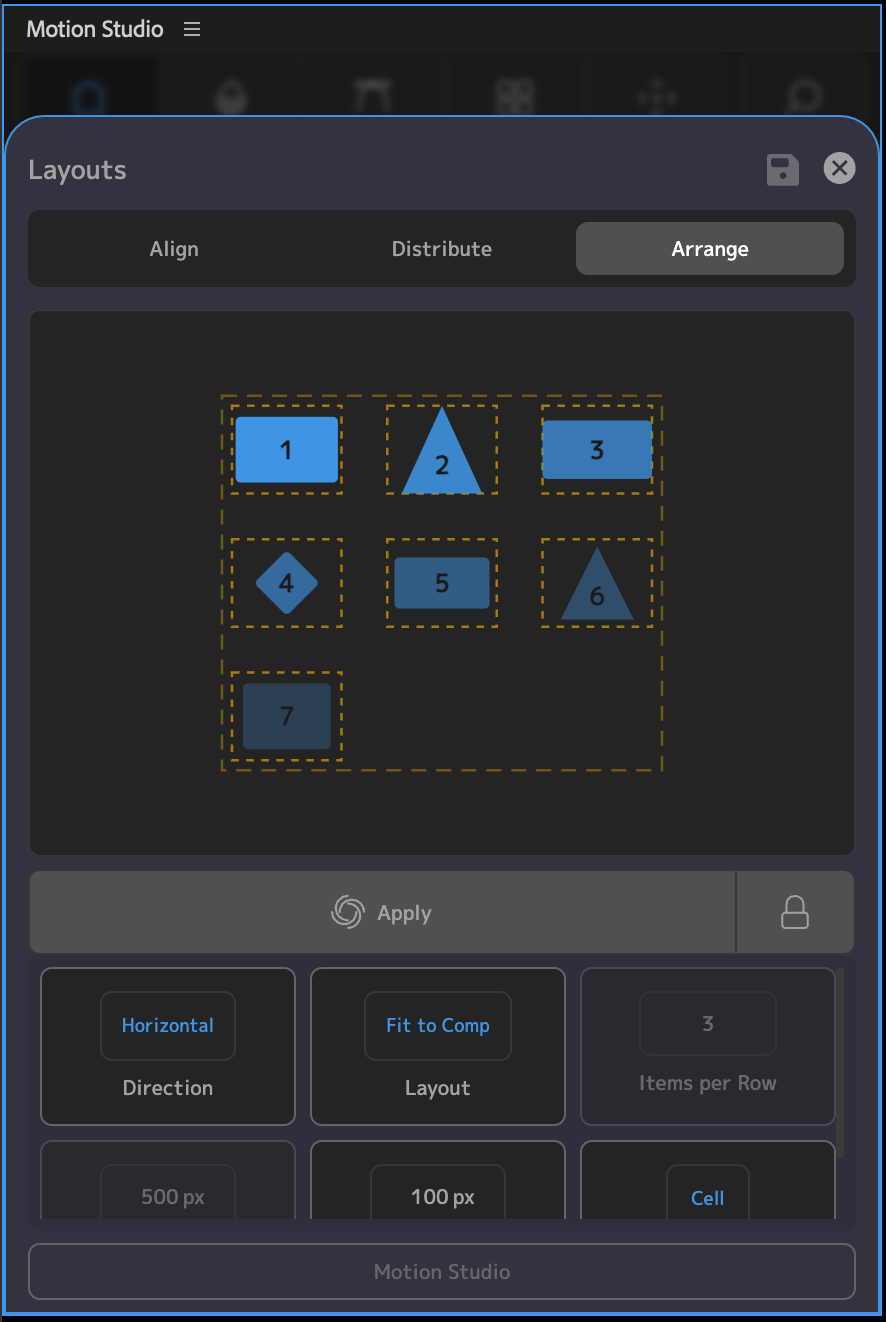
Select two or more layers, configure your grid, and click Apply — or enable Auto (lock icon) to re-run Arrange every time a parameter changes.
Direction
- Horizontal: Layers fill rows left-to-right, then wrap to the next row.
- Vertical: Layers fill columns top-to-bottom, then wrap to the next column.
Layout
- Count: Specify a fixed number of items per row/column.
- Fit to Comp: Auto-fit as many items per line as the composition width or height allows.
- Custom Size: Auto-fit as many items per line as a custom pixel size allows.
Items per Row / Items per Column
- Number of items per line. Only used when Layout is set to Count.
Custom Size
- Pixel size used to fit items per line. Only used when Layout is set to Custom Size.
Gap
- Pixel gap between items in the grid.
Bounds
- Cell: Each grid cell is sized to the largest layer in the selection. Layers are centered inside their cell — useful when items have different sizes but should sit on a uniform grid.
- Layer: Each layer occupies only its own size, end-to-end with the gap between them.
Auto
- Re-run Arrange whenever a parameter changes, so you can dial in spacing visually.